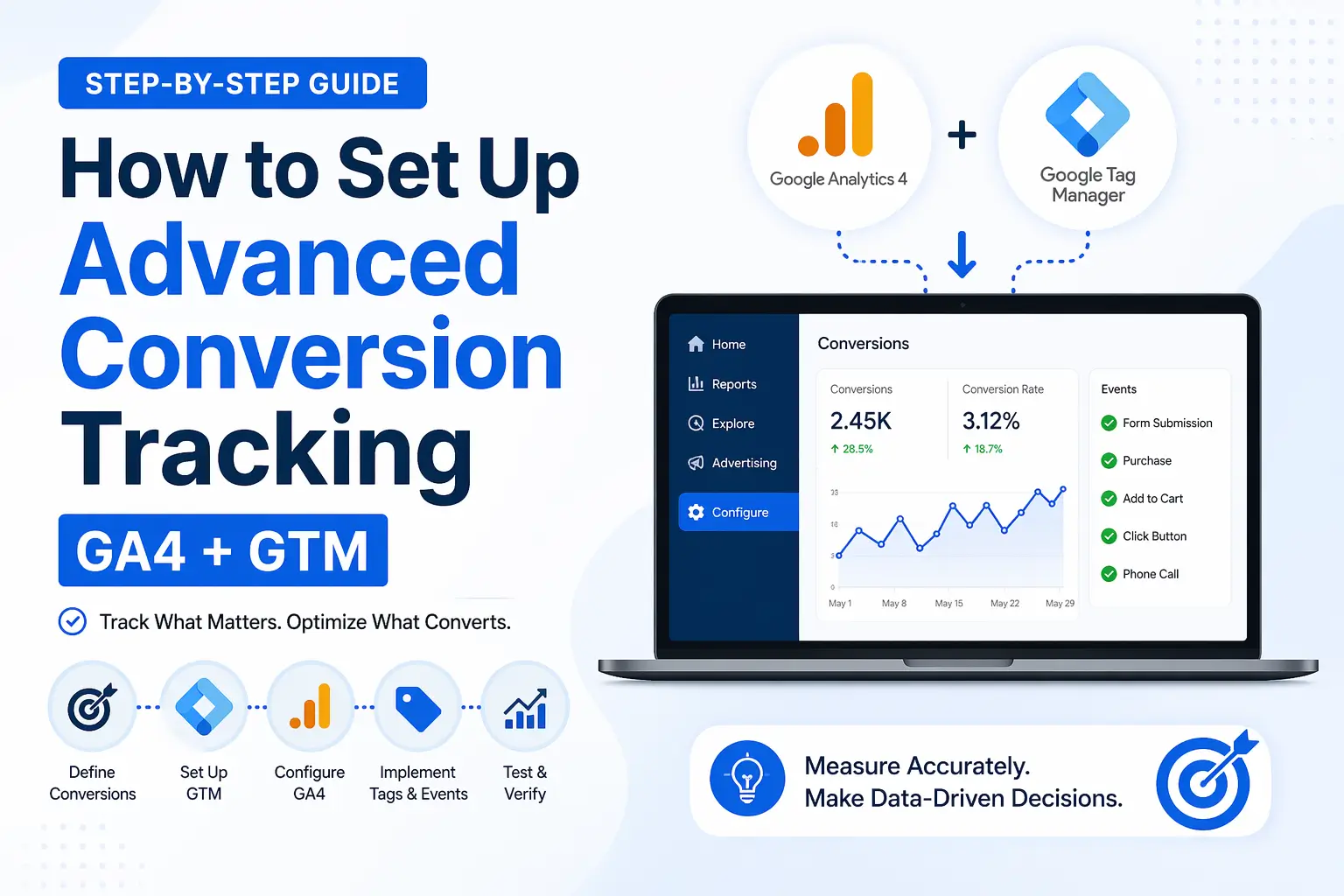
In today’s data-driven world, understanding what actions users take on your website is crucial for growth. Whether it’s form submissions, purchases, or clicks, tracking these actions helps you make smarter decisions. This is where Advanced Conversion Tracking comes in. By combining Google Analytics 4 (GA4) with Google Tag Manager (GTM), businesses can accurately measure performance and optimize their marketing strategies.
In this guide, we’ll walk you through a step-by-step process to set up conversion tracking the right way.
What Is Conversion Tracking in GA4?
Conversion tracking in GA4 allows you to measure key user actions on your website. Unlike Universal Analytics, GA4 uses an event-based model, meaning every interaction—clicks, page views, scrolls—can be tracked as an event.
With the right setup, you can track:
- Form submissions
- Button clicks
- Purchases
- Newsletter sign-ups
- Downloads
This gives you a complete picture of how users interact with your website.
Why Use GA4 with Google Tag Manager?
Using GA4 alone is powerful, but when combined with GTM, it becomes much more flexible and scalable.
Benefits include:
- No need to edit website code repeatedly
- Easy management of tags and triggers
- Faster implementation of tracking
- Better accuracy and customization
For businesses aiming to scale, this combination is essential.
Step 1: Set Up GA4 Property
First, create your GA4 property:
- Go to Google Analytics
- Click Admin → Create Property
- Enter your business details
- Add a data stream (choose “Web”)
- Copy your Measurement ID (G-XXXXXX)
This ID will be used inside Google Tag Manager.
Step 2: Set Up Google Tag Manager
If you haven’t already:
- Go to Google Tag Manager
- Create an account and container
- Install the GTM code on your website (in <head> and <body>)
Once installed, GTM will act as the control center for all your tracking.
Step 3: Add GA4 Configuration Tag in GTM
Now connect GA4 with GTM:
- In GTM, click Tags → New
- Choose GA4 Configuration
- Enter your Measurement ID
- Set trigger to All Pages
- Save and publish
This ensures GA4 starts collecting data from your website.
Step 4: Create Events for Conversion Actions
To track conversions, you need to create events:
- Click Tags → New → GA4 Event
- Choose your GA4 Configuration tag
- Add an Event Name (e.g., form_submit)
- Set up a trigger (e.g., form submission or button click)
Examples of events:
- contact_form_submit
- purchase_complete
- button_click
This is where Advanced Conversion Tracking becomes powerful—you can track very specific user actions instead of just page views.
Step 5: Set Up Triggers in GTM
Triggers define when your event should fire.
Common triggers:
- Click Trigger (for buttons/links)
- Form Submission Trigger
- Page View Trigger
Example:
If you want to track a “Contact Us” form:
- Choose Form Submission Trigger
- Set conditions (e.g., form ID or URL contains “thank-you”)
This ensures accurate tracking without false data.
Step 6: Test Your Setup
Before going live, always test:
- Click Preview in GTM
- Enter your website URL
- Perform actions (click buttons, submit forms)
- Check if tags are firing correctly
You can also use GA4 DebugView to verify events in real time.
Testing is critical to ensure your Advanced Conversion Tracking setup works flawlessly.
Step 7: Mark Events as Conversions in GA4
Now, tell GA4 which events are conversions:
- Go to GA4 → Events
- Find your event (e.g., form_submit)
- Toggle Mark as Conversion
That’s it! GA4 will now track and report conversions.
Best Practices for Accurate Tracking
To get the most out of your setup:
- Use clear and consistent event names
- Avoid duplicate tracking
- Test every change before publishing
- Track only meaningful actions
- Regularly review your data
A clean setup ensures better insights and smarter decisions.
How Hatch2Web Can Help
Setting up tracking can be technical, especially for growing businesses. At Hatch2Web, we specialize in creating data-driven solutions that help you track, analyze, and scale your business effectively.
From GA4 setup to full funnel optimization, our team ensures you get actionable insights—not just data.
Conclusion
Setting up GA4 with GTM may seem complex at first, but once implemented correctly, it gives you powerful insights into user behavior. With the right approach to Advanced Conversion Tracking, you can identify what’s working, fix what’s not, and significantly improve your ROI.
If you’re serious about scaling your business, investing time in proper tracking isn’t optional—it’s essential.Ready to take your analytics to the next level? Visit our website and start optimizing your business today.